
9.2 KiB
title, created, updated, type, tags, external
| title | created | updated | type | tags | external | ||
|---|---|---|---|---|---|---|---|
| Linux | 2021-11-09 | 2021-11-09 | summary |
|
https://github.com/wahyd4/knowledge/blob/master/categories/devops/linux.md |
Linux
Useful commands and tips
Split strings
# split ip list string by comma and get first one
export IP=127.0.0.2,127.0.0.3
echo $IP | cut -d ',' -f1
Create a systemd service
Create a file called /etc/systemd/system/hello.service
[Unit]
Description=Hello Service
After=network.target
StartLimitIntervalSec=0
[Service]
Type=simple
Restart=always
RestartSec=1
User=centos
ExecStart=/app/hello.sh

[Install]
WantedBy=multi-user.target
Automatically start the service when boot the vm
sudo systemctl enable hello
Start service
sudo systemctl start hello
Learned from here
ssh
Do not use default 22 port
ssh user@ip -p 22222
Login without password
# adds private key identities to the authentication agent
ssh-add ~/.ssh/id_rsa

# use locally available keys to authorise logins on a remote machine

ssh-copy-id user@ip -p 22222
Add user to the sudo group
usermod -aG sudo youruser
IP table
Cron job
List cron jobs for current user
crontab -l
List cron jobs for some user
crontab -u user -l
Edit cron jobs
crontab -e
An example cron job
For example, you can run a backup of all your user accounts
# at 5 a.m every week with:
# 0 5 * * 1 tar -zcf /var/backups/home.tgz /home/
Check cron jobs logs
grep CRON /var/log/syslog
Cron job expression
MIN HOUR DOM MON DOW
Field Description Allowed Value MIN Minute field 0 to 59 HOUR Hour field 0 to 23 DOM Day of Month 1-31 MON Month field 1-12 DOW Day Of Week 0-6
PS
ps aux | grep 'ruby'
List process, using grep to filter processes
tail
Tailing texts from file in realtime
tail -f a.log
f means following, auto append texts to console
nohup
Simply running application in background
df
df -h
Show disk usage and left, h means show in human readable way. Normally by MB/GB.
free
              total        used        free      shared  buff/cache   available
Mem:        3960624      416720      270024       22252     3273880     3264060
Swap:       4104188      109688     3994500
Show memory usage and
Watch
watch kubectl get pods
Continuous running the commands, watching the changes. By default it refresh the result every 2s.
Change timezone
TZ=Asia/Shanghai;
ln -snf /usr/share/zoneinfo/$TZ /etc/localtime
Check release
cat /etc/*-release
Debian check system version
cat /etc/issue

cat /etc/debian_version
htop
like top, but more
mosh
auto reconnect ssh
show last something time
last shutdown
last reboot
Count files in current folder
find . -type f | wc -l
Check if a port is open
Used Netcat
if ! nc -z localhost 5672; then
sleep 3;
fi
scp copy files between host
Copy files from remote server
scp your_username@remotehost.edu:foobar.txt /local/dir
Copy local files to remote server
scp /path/to/local/file user@server:/path/to/remote/file
Merge video files into one
ffmpeg -f concat -safe 0 -i ./files.txt -c copy output.mp4
In the files.txt you should list all the video clips like the following
file 1.flv
file 2.flv
file 3.flv
Curl
Curl is a very popular and powerful HTTP client, there is also another very good tool called httpie written in Python which is even eaiser to use.
The following are some useful commands:
Post request with file
curl --data "@$(pwd)/fixure/sample.json" --user "foo:bar" localhost:8080/api/abc
Mount
Mount NFS(Network file system) to local
mkdir /to-local-folder
# mount
mount -t nfs -O user=abc,pass=pass 192.168.1.2:/nfs-folder  /to-local-folder

# remount
mount -o remount /to-local-folder
Mount folder permanently
In the example above, the mounted folder will lost the connection when you restart your system, in order to permanently mount the folder, you will need to edit /etc/fstab by adding one more line
192.168.1.2:/nfs-folder /to-local-folder nfs defaults 0 0
You can specify more options
192.168.0.216:/nfs-folder /to-local-folder nfs defaults,proto=tcp,port=2049 0 0
Rsync
Sync folders and files between folders and hosts
sync between directories
rsync -avzh /root/rpmpkgs /tmp/backups/
sync folders between hosts
rsync -avz --exclude downloads --exclude 'some-folder' /mnt rsync://user@192.168.1.2/rsync/ -v -c
You can export RSYNC_PASSWORD to pass password to the command.
Check rsync logs
grep -ir rsync /var/log
Check debian version
cat /etc/issue

cat /etc/debian_version
Debian error bash: netstat: command not found
apt-get install net-tools
Create CPU loads
dd if=/dev/urandom | gzip -9 >> /dev/null &
Kill the load process
kill %1
IP Address
sudo /sbin/ifconfig

ip address # new command
IP range, CIDR
# ip range  ,CIDR network

/16 /20 /24
trace route tool
sudo apt-get install traceroute

sudo traceroute google.com -I
linux list all the service with status
systemctl --full --type service --all
To see details about the RAM installed on your VM, run the following command:
sudo dmidecode -t 17
verify the number of processors, run the following command:
nproc
CPU information
lscpu

# Check cpu platform

cat /proc/cpuinfo
Running application in background with screen
sudo apt-get install -y screen

sudo screen -S mcs java -Xms1G -Xmx7G -d64 -jar /home/minecraft/minecraft_server.1.11.2.jar nogui

detach

# To detach the screen terminal, press Ctrl+A, D. The terminal continues to run in the background. To reattach the terminal, run the following command:

sudo screen -r mcs

# send commands to screen

sudo screen -r -X stuff '/stop\n'
ApacheBench To place a load on the load balancer, run the following command
ab -n 50000 -c 1000 http://ip
Mount drives
1. Find what the drive is called
You'll need to know what the drive is called to mount it. To do that fire off one of the following (ranked in order of my preference):
lsblk
sudo blkid
sudo fdisk -l
You're looking for a partition that should look something like: /dev/sdb1. The more disks you have the higher the letter this is likely to be. Anyway, find it and remember what it's called.
2. Create a mount point (optional)
This needs to be mounted into the filesystem somewhere. You can usually use /mnt/ if you're being lazy and nothing else is mounted there but otherwise you'll want to create a new directory:
sudo  mkdir /media/usb
3. Mount!
sudo mount /dev/sdb1 /media/usb
When you're done, just fire off:
sudo umount /media/usb
Change dns server
vim /etc/resolv.conf
Last boot
last reboot | less
last -x shutdown
Ports scanner
#nmap scan ports
nmap -v 203.192.94.53
Check and turn off swap
# swap

1. Identify configured swap devices and files with cat /proc/swaps.
2. Turn off all swap devices and files with swapoff -a.
3. Remove any matching reference found in /etc/fstab.
4. Optional: Destroy any swap devices or files found in step 1 to prevent their reuse. Due to your concerns about leaking sensitive information, you may wish to consider performing some sort of secure wipe.
Reset timezone
sudo dpkg-reconfigure tzdata
List all timezones
ls /usr/share/zoneinfo/

# check ssh failed retries

grep "Failed password" /var/log/auth.log
Linux disk analyse
###  Ncdu analyse linux disk

ncdu
VIM setup
# https://github.com/amix/vimrc

git clone --depth=1 https://github.com/amix/vimrc.git ~/.vim_runtime
sh ~/.vim_runtime/install_awesome_vimrc.sh
check ssh failed retries
grep "Failed password" /var/log/auth.log

# In order to display extra information about the failed SSH logins, issue the command as shown in the below example.

 egrep "Failed|Failure" /var/log/auth.log
Popular Distributions
Debian
Ubuntu
Manjaro
Fedora
Fedora is the main project, and it’s a community-based, free distro focused on quick releases of new features and functionality.
CentOS
CentOS is basically the community version of Redhat. So it’s pretty much identical, but it is free and support comes from the community as opposed to Redhat itself.
RHEL (RedHat Enterprise Linux)
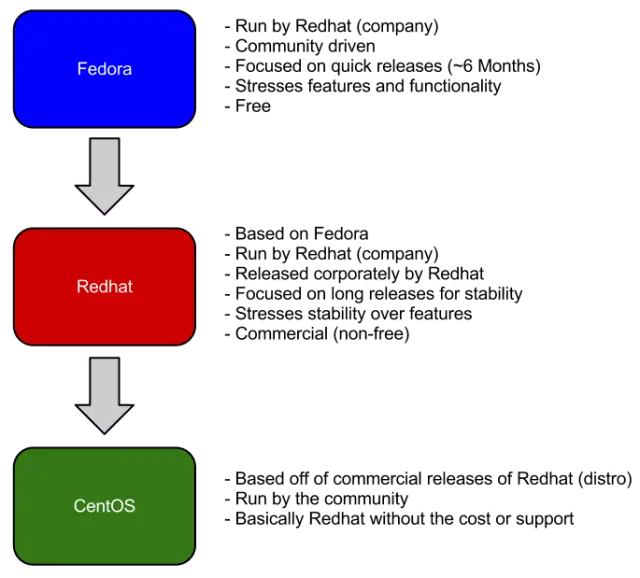
RHEL is the corporate version based on the progress of that project, and it has slower releases, comes with support, and isn’t free.